How it works

From sign-up to your first application, step by step.

Setting up takes about five minutes. After that Jobofinder keeps looking and applying, and calls on you only when a form needs a person. The pictures below are the real screens, with a made-up customer and a practice employer.

1

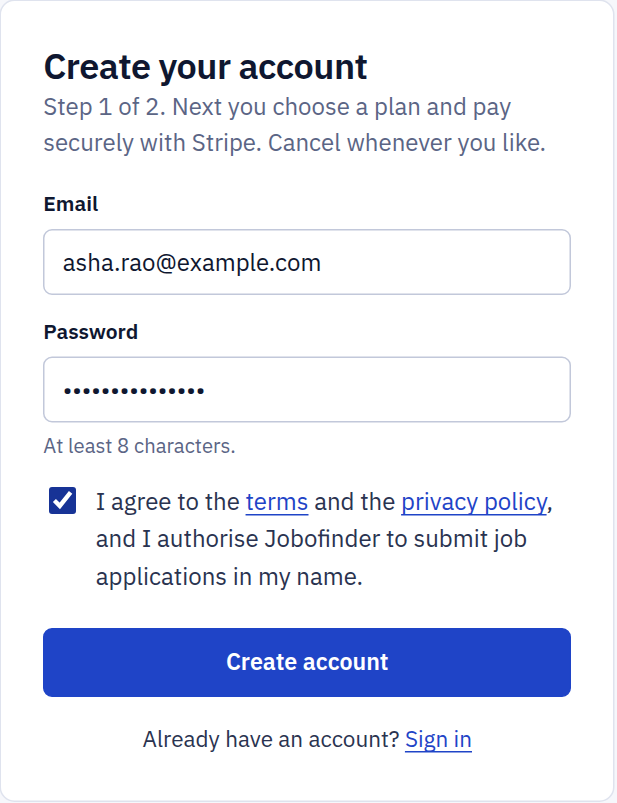
Create your account

Press Get started, enter your email address and choose a password of at least 8 characters.

  • Tick the box to agree to the terms and to let Jobofinder send applications in your name.
  • If a small "I am human" box appears above the button, wait for its tick. It keeps robots out and usually passes by itself.
  • We email you a link. Press it to confirm the address is yours; nothing can be started until you have.
The Create your account form with an email address, a password and the terms box ticked
2

Choose a plan and pay

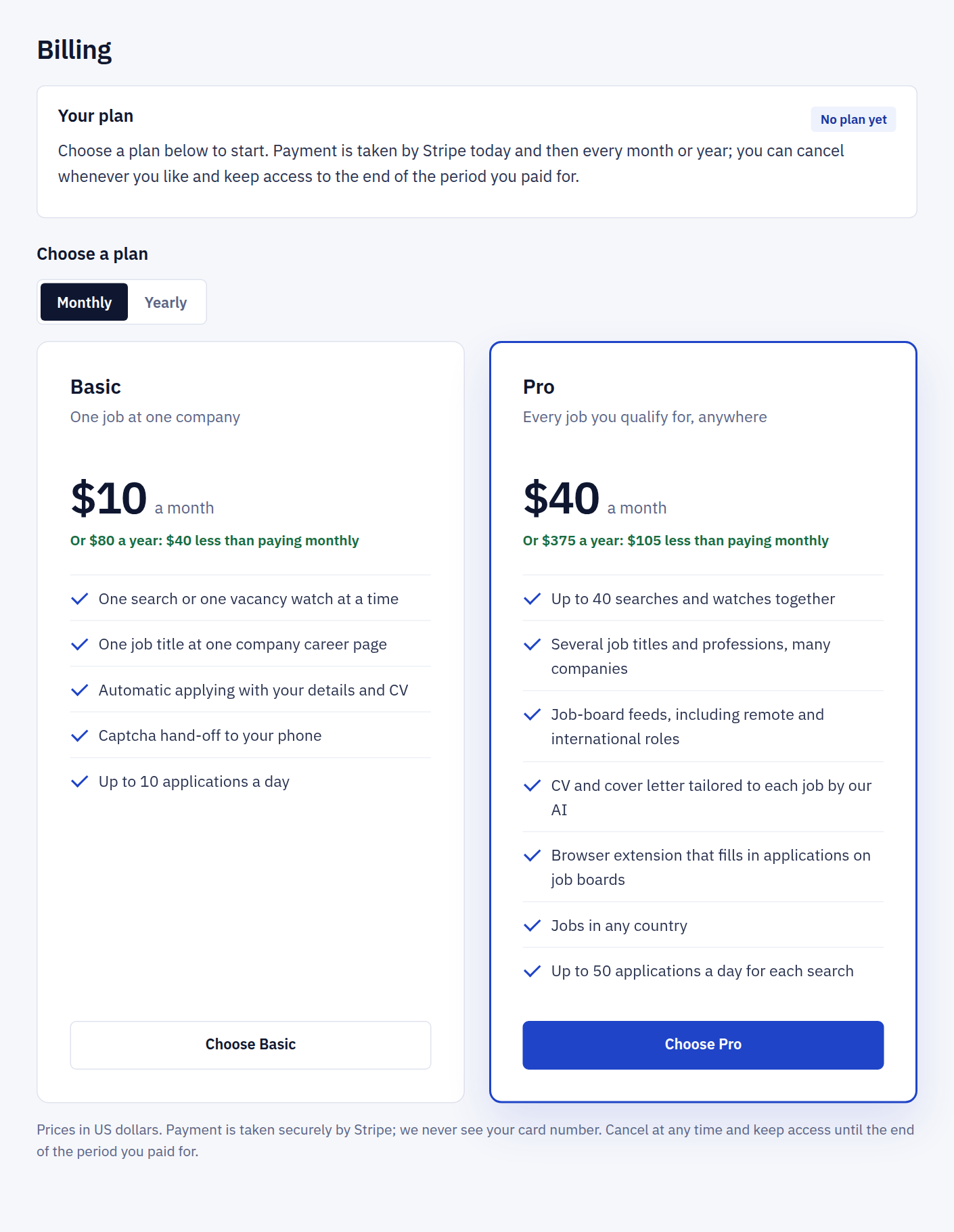
Straight after sign-up you land on the Billing page. Pick Basic or Pro, monthly or yearly, and press its button.

  • You pay by card on Stripe's secure payment page. Jobofinder never sees your card number.
  • There is no free trial: the first payment is taken today, and your plan is active seconds later.
  • Basic is one search: one job title, or a ready-made search such as every part-time job near you, at one company's careers page and on the job boards of one country. Pro covers many titles, companies and several countries, and adds CV tailoring and the browser extension.
The Billing page showing the Basic and Pro plans with their prices and a Choose button under each
3

Add your details and your CV

Open Profile. Everything here is typed into application forms for you, so it is worth two careful minutes.

  • Upload your CV as a PDF or Word file. It is attached to every application.
  • Fill in your name, email, phone and town, and the answers forms always ask: right to work, notice period, willingness to relocate.
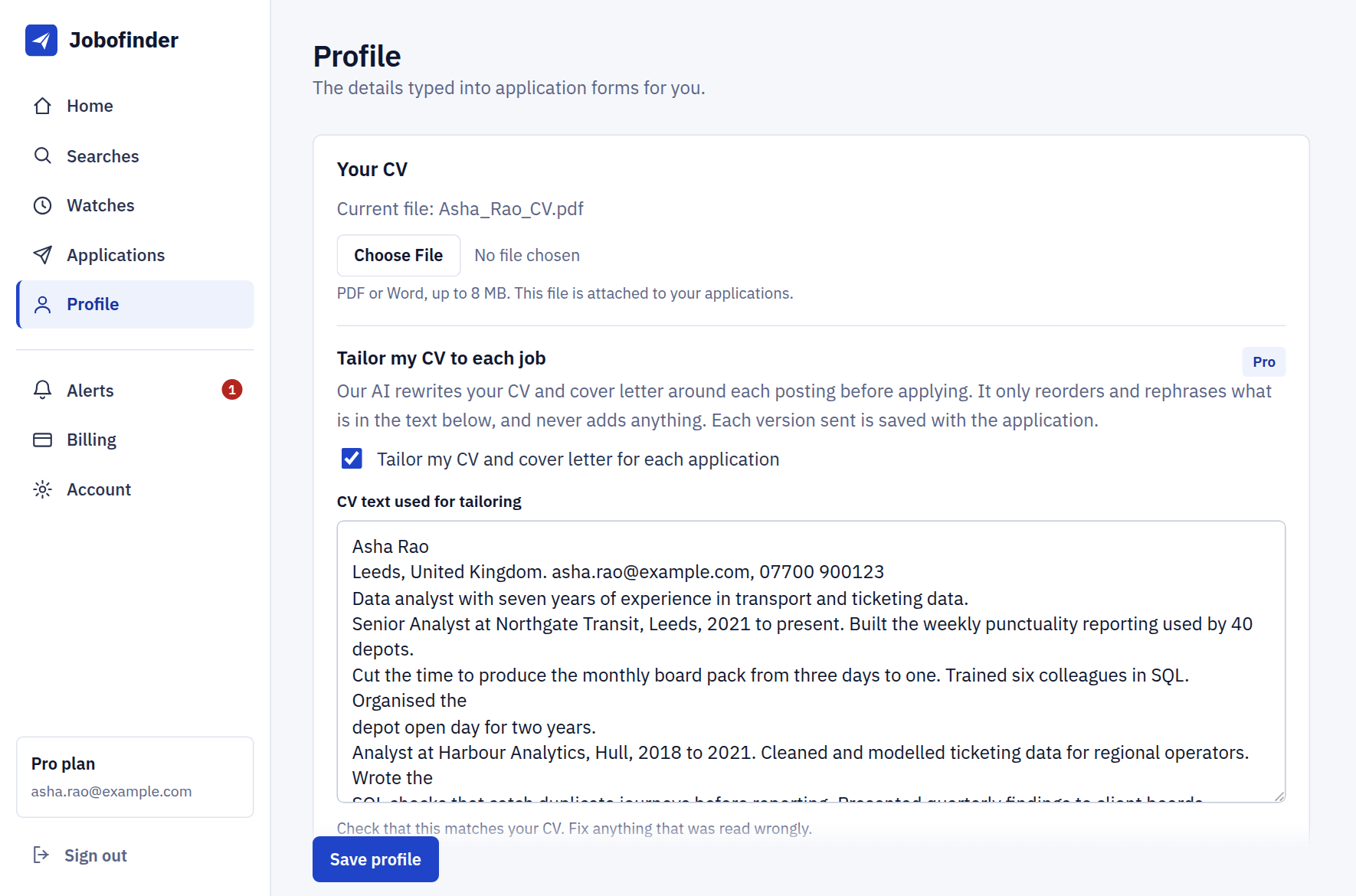
  • On Pro, leave Tailor my CV to each job ticked and check that the text read from your CV is right.
  • Add the town for each place you worked or studied, so forms that ask for it get the right one.

Your profile is stored encrypted and is used only to fill in your applications.

The Profile page with an uploaded CV and the Tailor my CV to each job option ticked
5

It applies for you

From now on you can close the page. Jobofinder runs on our servers around the clock and applies as matching jobs appear.

  • Applications lists everything found and sent in your name.
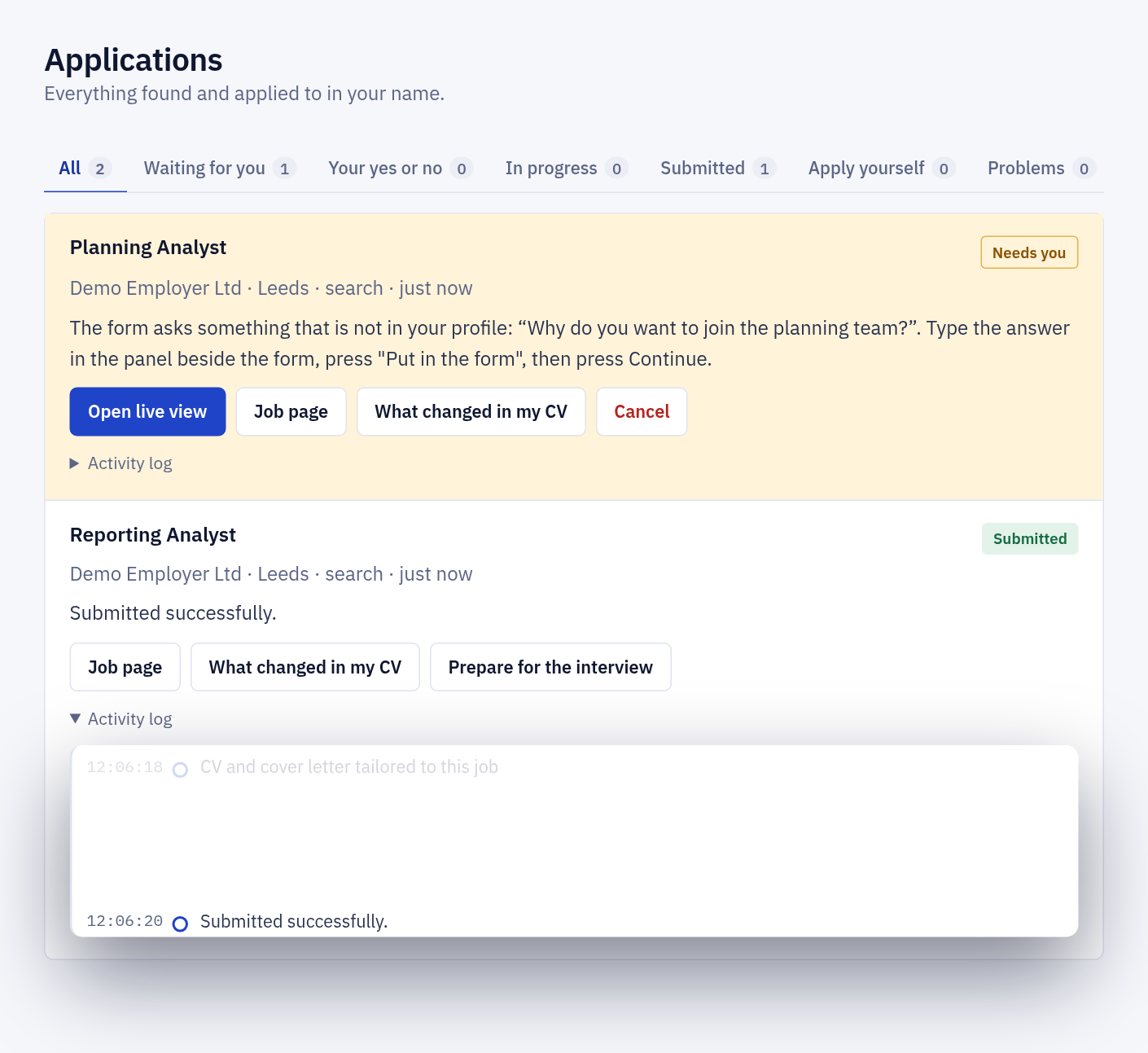
  • Open Activity log on any application to see each step: the CV attached, the fields filled, the moment it was submitted.
  • You get an alert each time an application has gone out.
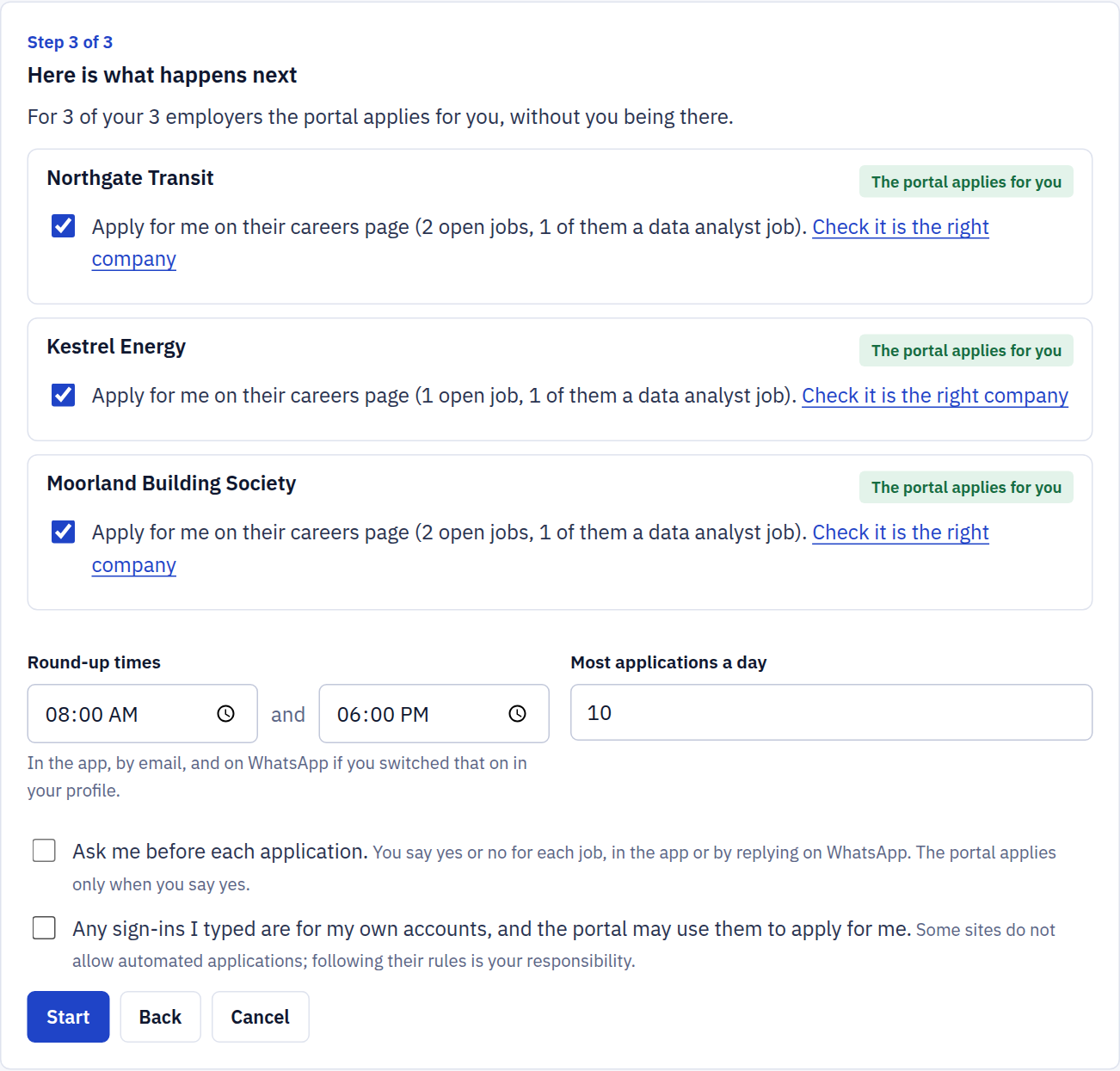
  • Prefer to decide job by job? Choose Ask me first when you start the search. Each match then waits for your Yes, apply or No, skip, in the app or as a YES or NO reply on WhatsApp.
  • Prefer to look at the filled-in form first? Switch on "Show me each application before it is sent" in your profile.
The Applications page: one application marked Needs you and one marked Submitted, with its activity log open
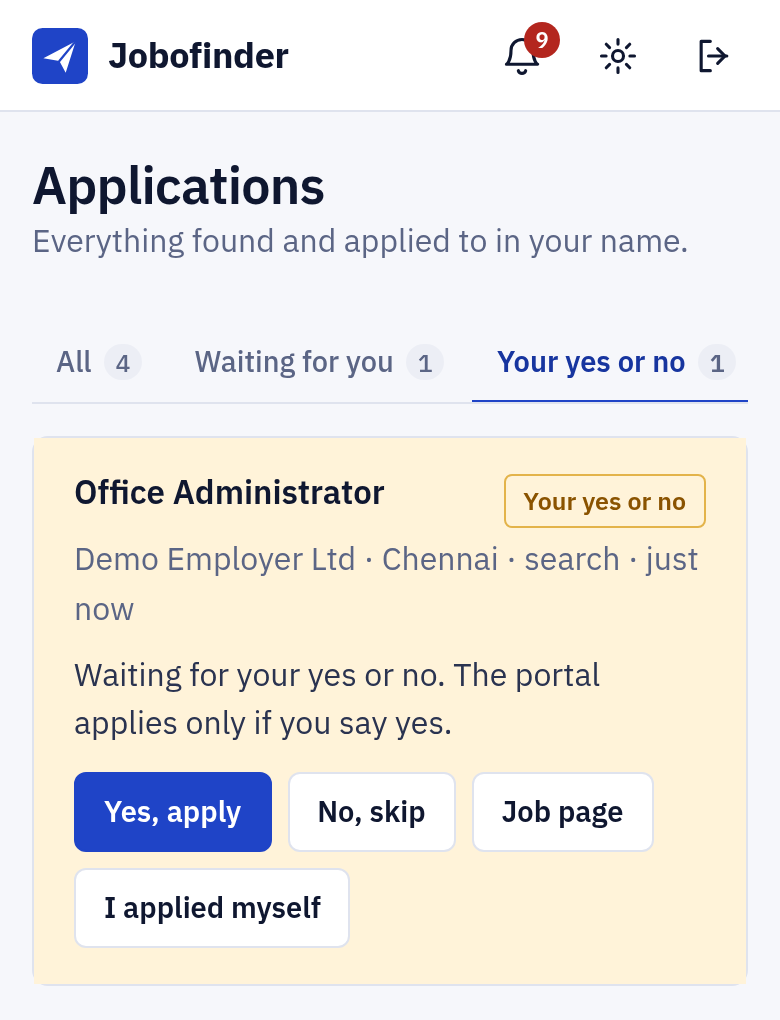
On a phone: a job waiting for the customer's yes or no, with the buttons Yes, apply and No, skip
With "ask me first" on, nothing is sent until you say yes.
6

When a form asks something new

Jobofinder never guesses. If a form asks a question your profile does not answer, the application waits and you get an alert.

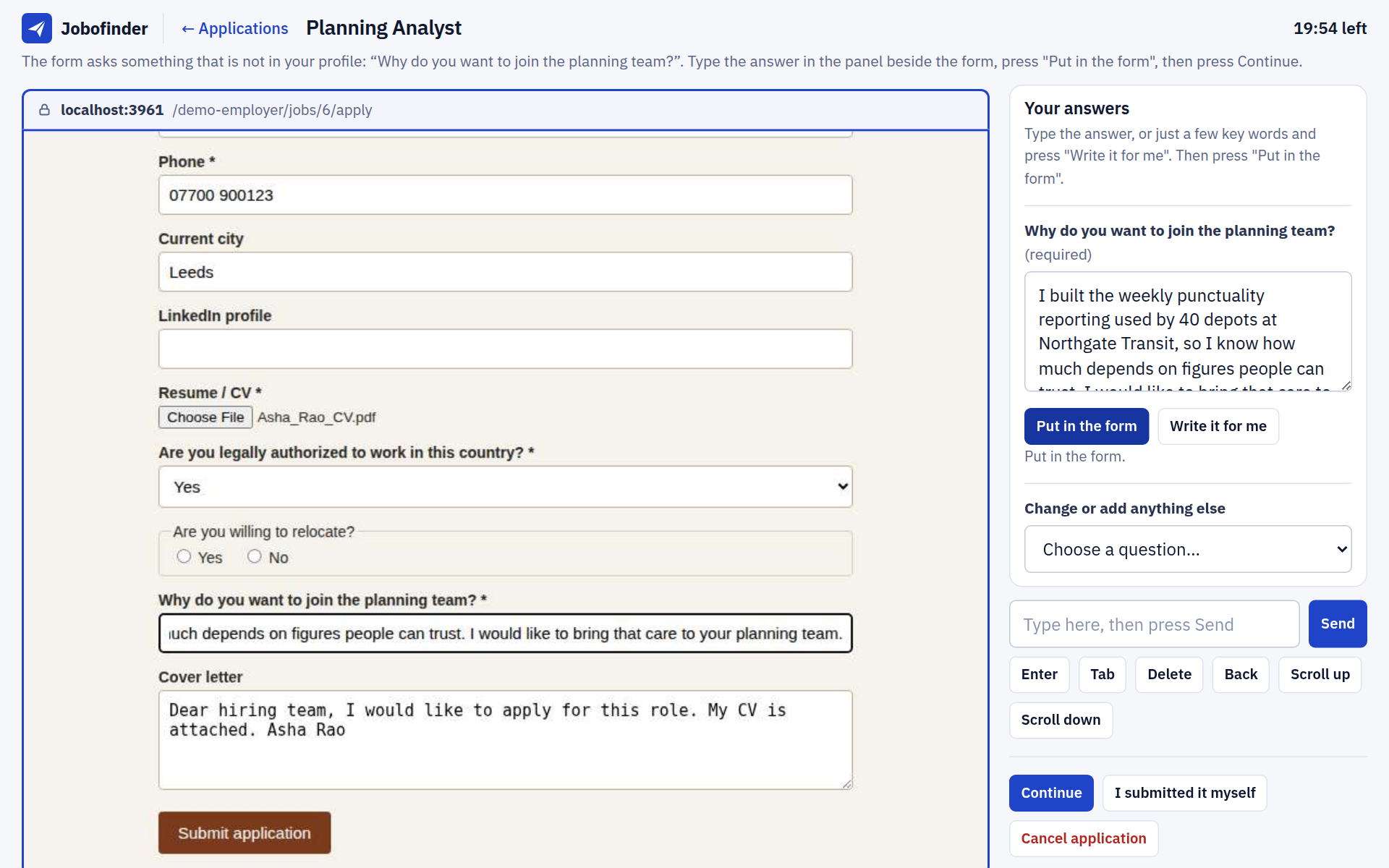
  • Press Open live view. You see the employer's real form on the left and your answers on the right.
  • Type the answer. On Pro you can type a few key words and press Write it for me: our built-in AI writes the answer from your notes and your CV, and you change whatever you like.
  • Press Put in the form, then Continue. The application is submitted.
  • With WhatsApp alerts on, a single question arrives as a message and you can simply reply with your answer.
  • Your answer is remembered, so the same question does not stop the next application.
The live view: the employer's application form on the left, and on the right the Your answers panel with a written answer and the buttons Put in the form, Write it for me and Continue
7

When there is a captcha

Jobofinder does not solve captchas or try to get round them. It hands that one step to you, wherever you are.

  • You are alerted in the app, on your phone, by email and, if you add your number in your profile, on WhatsApp. Switch on phone alerts under Alerts so it reaches you when the app is closed.
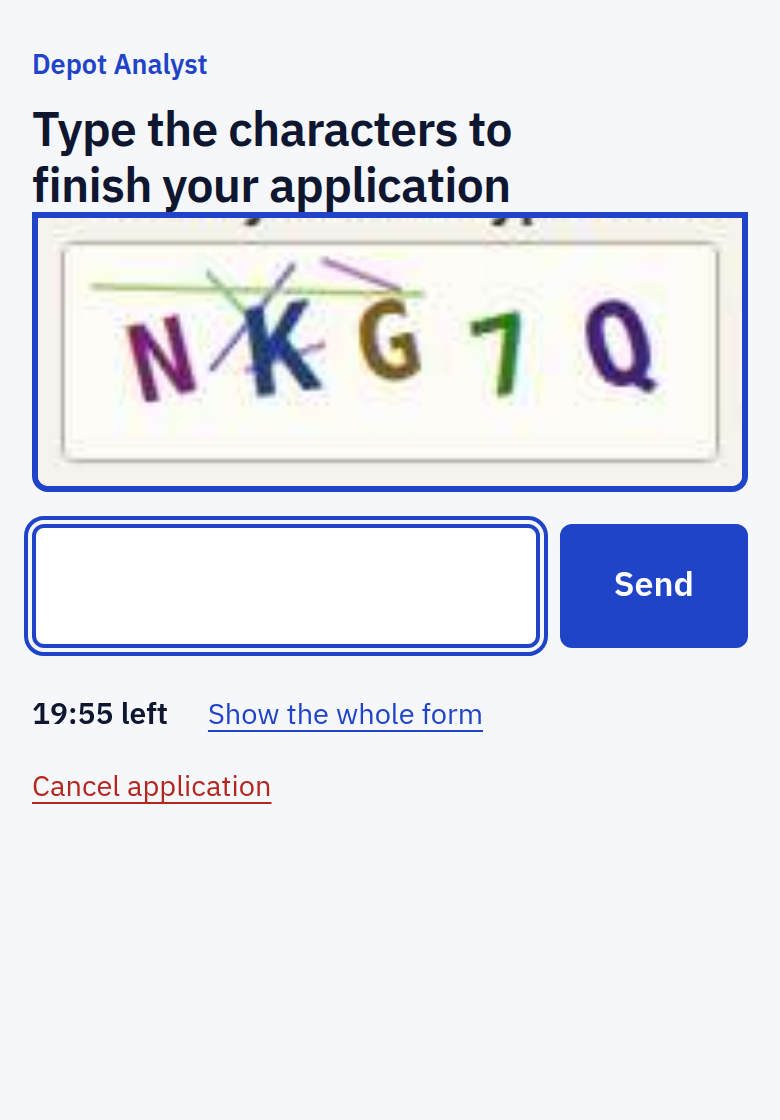
  • Tap the alert. The captcha opens enlarged, with one box to type in.
  • On WhatsApp the captcha arrives as a picture: reply with its characters and they are typed into the form for you.
  • Type the characters and press Send. The application is submitted seconds later.
  • You have 20 minutes and the alert is repeated. If you miss it, restart the application with one press.

On a phone, add Jobofinder to your home screen and it behaves like an app.

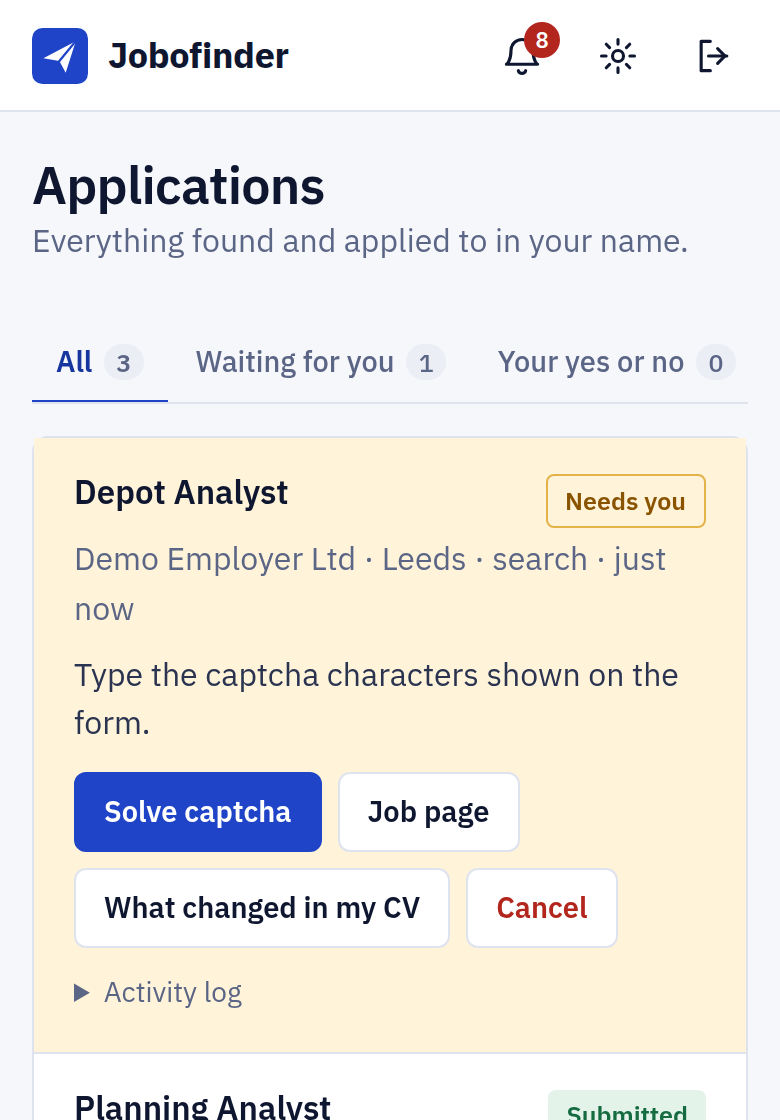
On a phone: an application marked Needs you with a Solve captcha button
On a phone: the captcha picture enlarged with one box to type the characters and a Send button
8

See what was changed, and get ready for the interview

On Pro, the CV and cover letter are rewritten around each posting. Every version that was sent is kept with its application, with an account of each change, so you know what the employer has read.

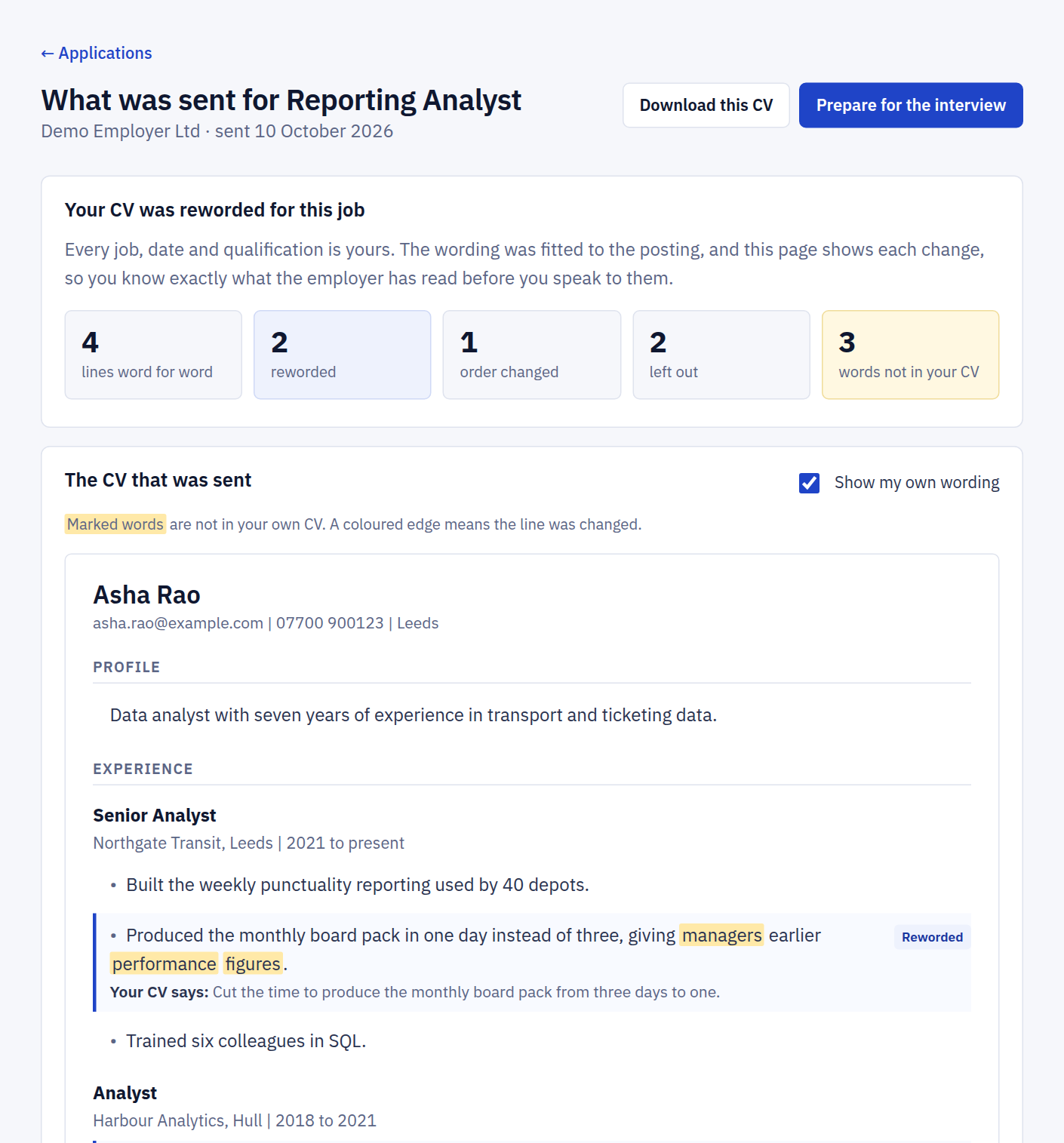
  • Press What changed in my CV on an application. You see the CV that was sent, each reworded line beside your own wording, the words that are not in your own CV, and anything that was left out. The PDF can be downloaded from the same page.
  • Every job and qualification from your own CV stays, in the order you wrote them.
  • Nothing is added. If the AI's version contains an employer, title or number that is not in your CV, it is thrown away and your own CV is sent instead.
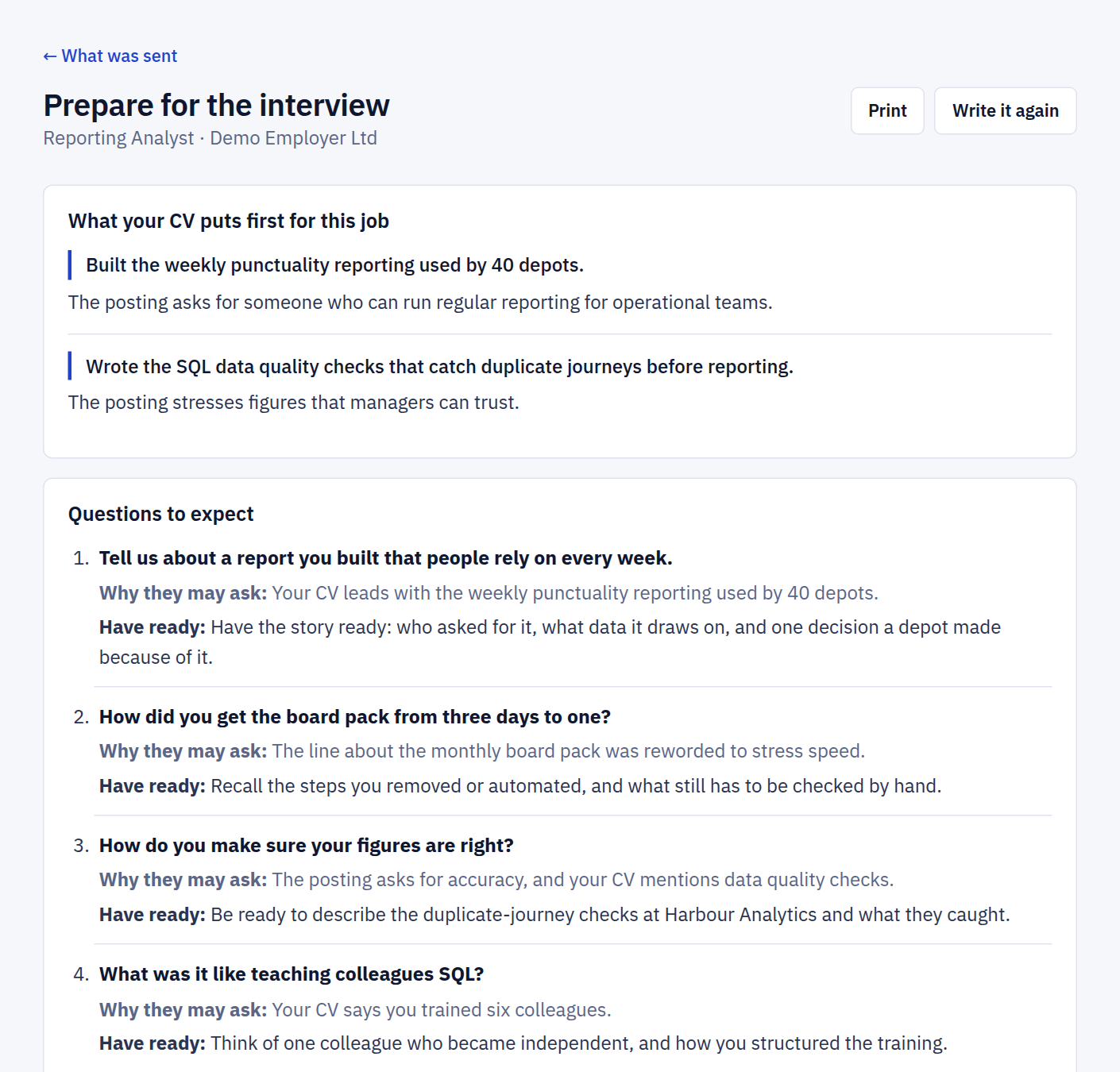
  • Called for an interview? Press Prepare for the interview. Our built-in AI writes one page from the CV that was sent and the posting: the points that were put first, the questions to expect and what to have ready. You can print it.
The What was sent page: a tally of lines taken word for word, reworded and left out, then the CV with a reworded line beside the customer's own wording and the new words marked
The Prepare for the interview page: the points the CV puts first for the job, then numbered questions to expect, each with why it may be asked and what to have ready
The preparation sheet is a guide, not a script: it tells you what to have ready, in your own words.
9

Job boards and sites that want you signed in

LinkedIn, Indeed, Naukri and some employers' sites only accept applications from you, signed in, in your own browser. Jobofinder never signs in to those for you. On Pro, the browser extension does the typing instead.

  • Under Account, install the extension for Chrome or Firefox and press Connect a browser to get your code.
  • Open a job's application form and press the Jobofinder button in your browser's toolbar.
  • The form is filled in from your profile and your CV is attached. Where a form asks for every job and course in boxes of its own, they come from Work history and education in your profile.
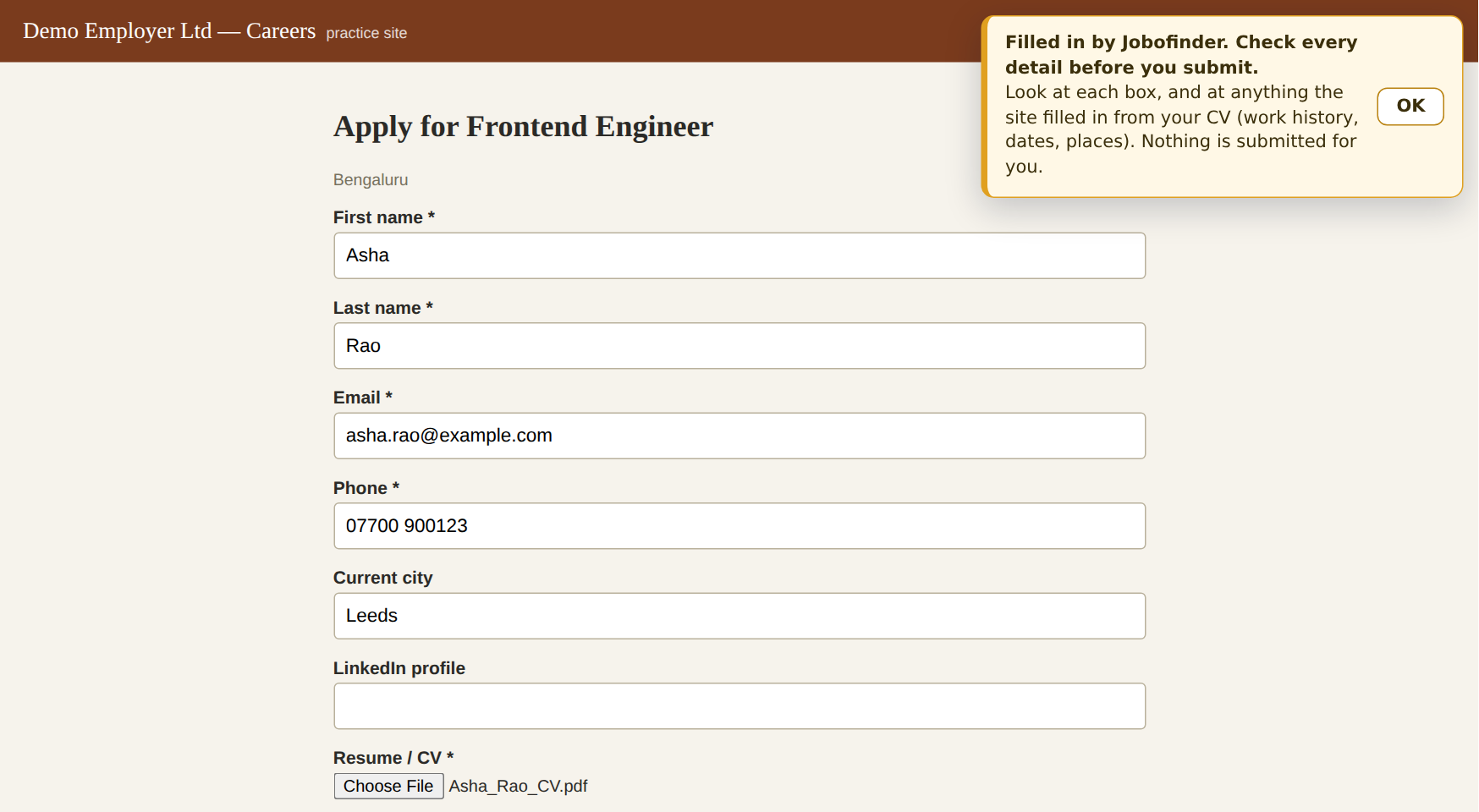
  • For the questions that are left, open the helper beside the page: answer them there, or type a few key words and press Write it for me. Nothing goes into the form until you press Put in the form.
  • Check every detail, then press the site's submit button yourself. The extension never submits for you.
An employer's application form filled in by the browser extension, with a notice asking the customer to check every detail before submitting
10

Change plan, update your card or cancel

Open Billing and press Change plan, update card or cancel. That takes you to your own page at Stripe, where you can also see your invoices.

  • Cancel whenever you like. You keep access until the end of the month or year you paid for, and you are not charged again.
  • If you move from Pro to Basic, searches that Basic does not cover are paused, not deleted. Upgrade again and they resume with one press.
  • Under Account you can download everything we hold about you, or delete your account and all of it.

Stuck on a step? Write to [email protected].

Ready when you are.

Create an account, choose a plan, and it starts looking today.

Get started